# Compare & Compare Page
## Overview
* The **"Compare"** section in our app allows customers to view multiple products simultaneously on the **"Compare Page"**, making shopping easier.
## How To Install ?
{% embed url="https://youtu.be/U72BNZuDTcc" %}
To use the **"Compare"** section, you need to install the **"Compare page"** section. Please follow the steps and images below."
1. From our app, click **Library**.
2. In the **Sections** tab, search for the keyword **Compare.**
3. Click the **Install** button to install the **Compare** and **Compare Page** sections.
{% hint style="warning" %}
Note: These section is **only compatible** with Smind's section. To ensure it works well, please use section of Smind
{% endhint %}
4. From the Shopify Editor sidebar, click **Add Section** in the **Global** tab.
5. Search for **Compare** section and click on it
6. Create a new template.
7. Enter the name of new template. For example: **Compare.** Click **Create Template.**
8. From new template you've just created, click **Add Section.**
9. Search for **Compare Page** and click on it.
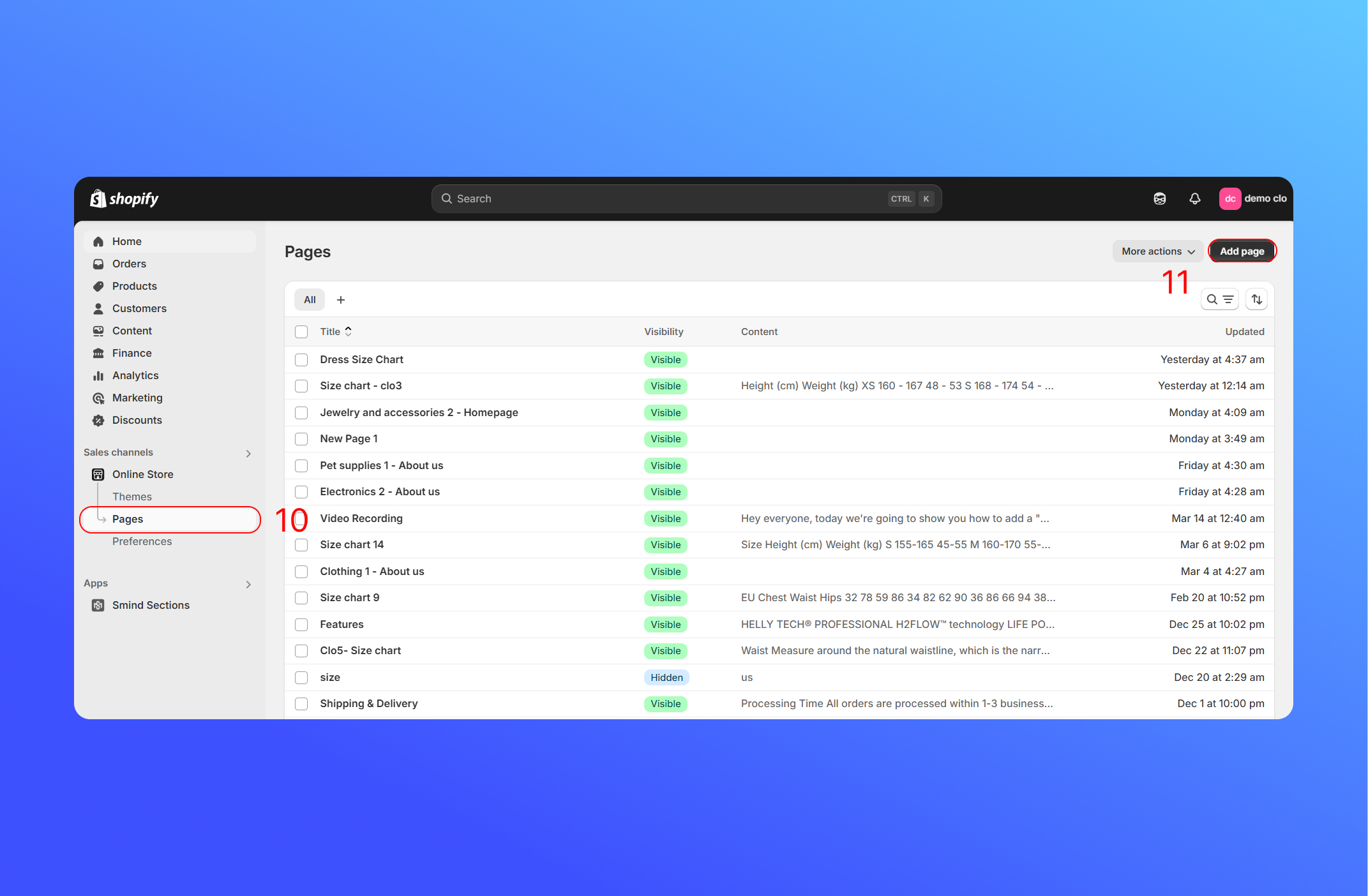
10. Go back to your Shopify admin, click **Page.**
11. Click **Add Page.**
12. Enter the title of the page. For example: **Compare** page
13. Choose a template you've just created. For example: **Compare** template
14. Under the Visibility, select the **Visible** for the page. Click **Save**
15. Go to Shopify Editor sidebar, click on **Compare** section under the Global section.
16. Choose a page you've just created for the compare page. For example: **Compare** page
After a successful setup, you will see the product you want to compare on the **Compare page**.
## How To Use ?
After adding the **Compare** section to your theme, the Compare icon will appear on the product. Clicking the icon will add the product to the **Compare page**.
{% hint style="warning" %}
The **'Compare'** is only displayed on our section. If you are not using our sections, it will not be visible.
{% endhint %}
If you click the **Compare** icon again, two cases may occur (depending on your settings).
Case 1: The product will be removed from the **Compare page.**
Case 2: The other is that it will take you to the page **Compare page.**
When you access the **"Compare page"**, you can view the products on the **Compare page** and remove them from the comparison list.
## Display Locations of the Wishlist
The **Compare** can be displayed on both desktop and mobile in the following locations.
1. **Header**
2. **Product card**
3. **Product detail**
4. **Quick view**
5. **Customer account**