---
description: >-
A section refers to a customizable content block within a theme that allows
you to organize and arrange various elements on your online store's pages.
---
# Sections
## How To Install Sections?
{% embed url="https://files.gitbook.com/v0/b/gitbook-x-prod.appspot.com/o/spaces%2FjRi1aohY8I4BPjjvC9cH%2Fuploads%2FhDwzcE14g9CIwKM45M4d%2FHow%20to%20install%20section.mp4?alt=media&token=bafba4bd-e5f4-43e4-8fba-55b5a4ca18b4" %}
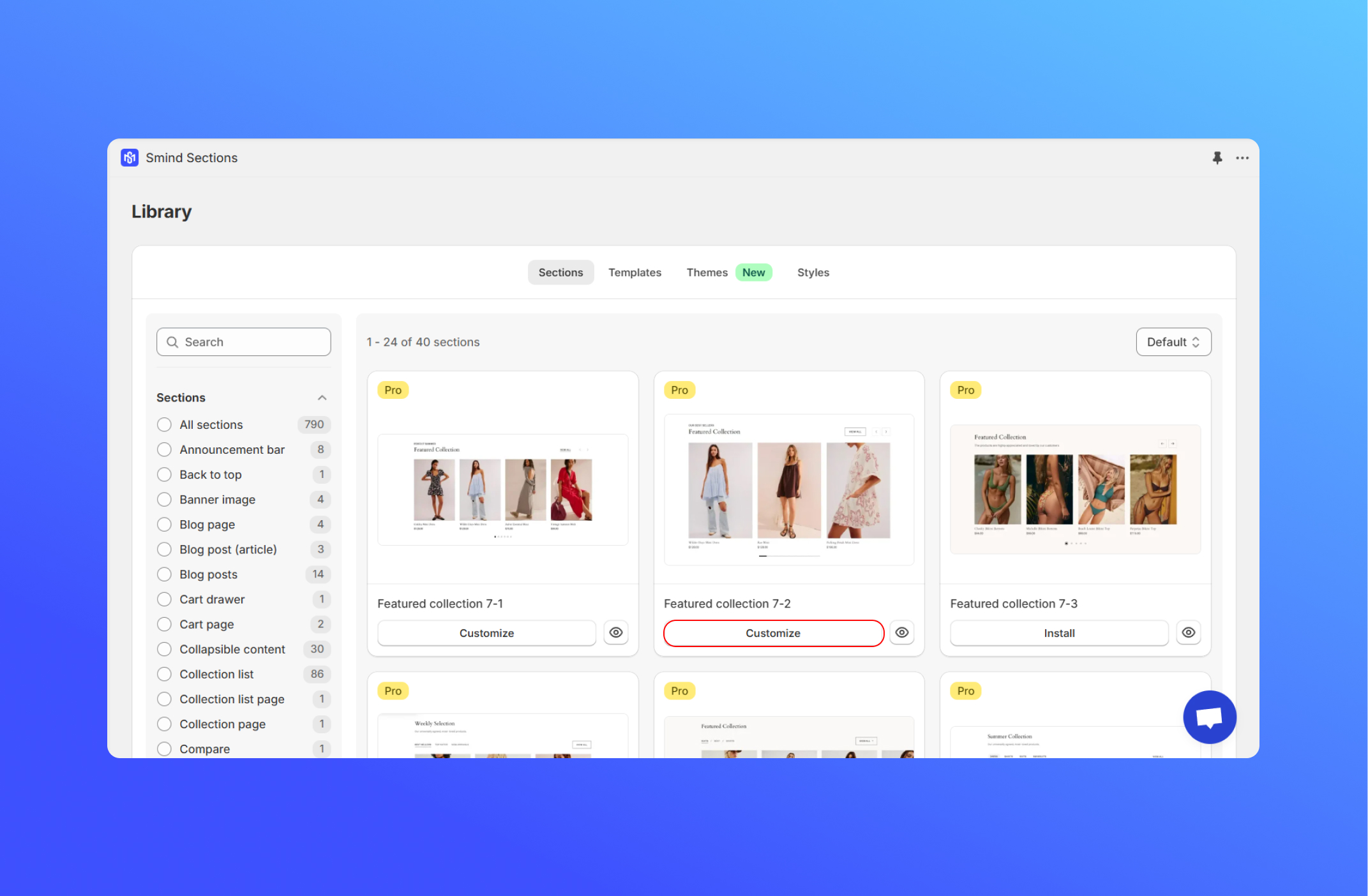
1. From our app, click **Library.**
2. In the **Sections** tab, search or select the category of section.
3. Click **Install** the section that you like.
4. Click **Customize.**
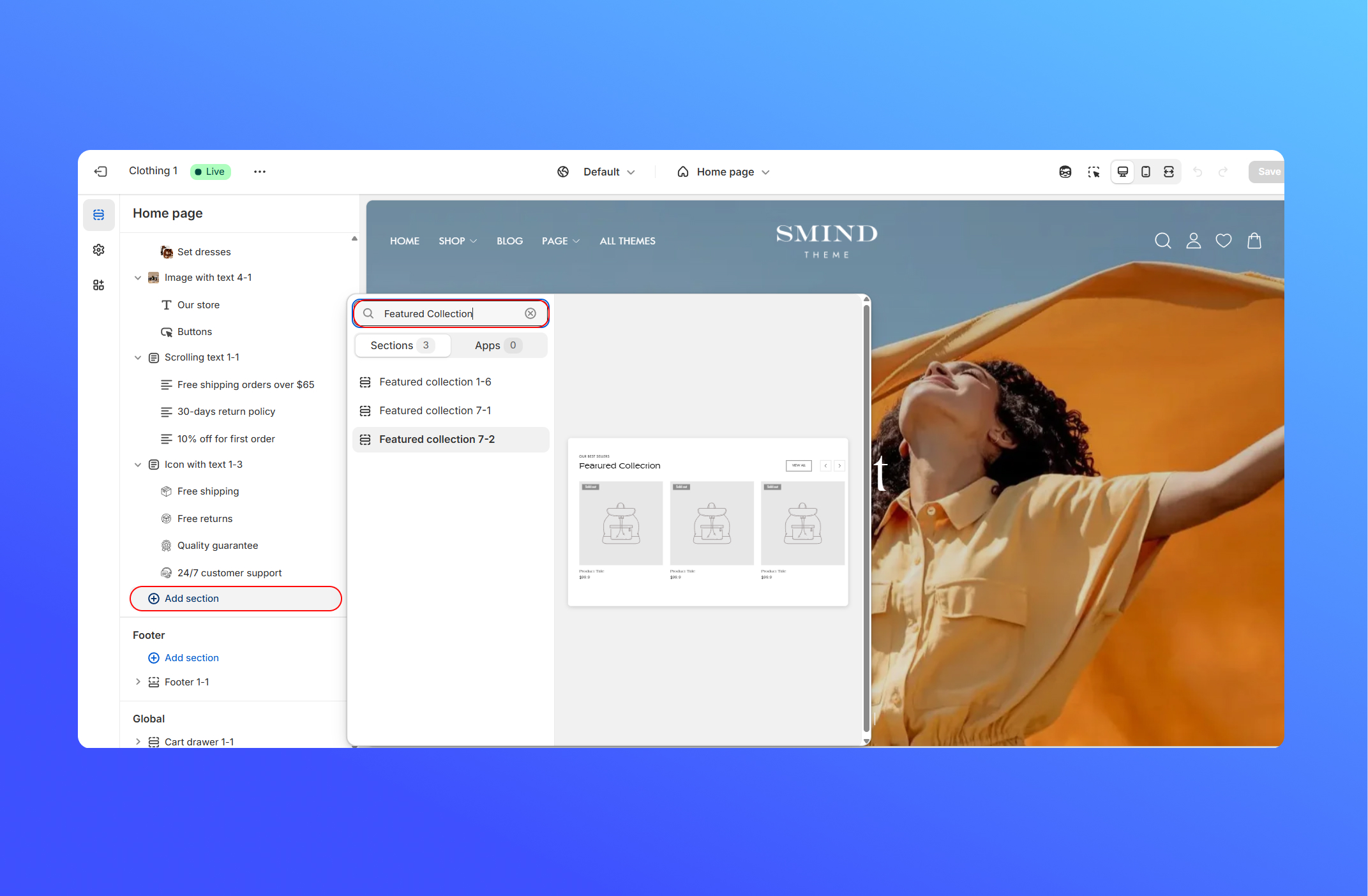
4. In the theme editor sidebar, click **Add Section.**
5. Click **Save.**
## **Follow Our Interactive Guide**
{% hint style="success" %}
**HOW TO USE**:
1. Click the hotspot to see the next step. You can also use -> <- on the header tab to follow.
2. To open window in a full screen, click  for better experience
{% endhint %}
{% @guideflow/guideflow-embed requestedUrl="https://app.guideflow.com/player/dr9olmvaor" %}
## Frequently Asked Questions (FAQs)
### Q: Why can’t I find the Sections in my Shopify store after installing it?
To make sure your Sections appears correctly, check these two things:
1. **Activate SMI Theme Helper**
Go to your Shopify **Theme Settings** → **App embeds** and make sure **SMI Theme Helper** is turned ON. This helper enables the app to work properly inside your theme.
2. **Add the Sections to Your Current Theme**
After installing a section from the Smind Library, you still need to add it manually to your **current theme’s template.**
* From **Settings** in Smind Sections app, scroll down to choose a theme to work on, you need to make sure that this theme is your current theme.
* Open Shopify → **Online Store → Themes → Customize.**

.jpg?alt=media&token=5d19f8d9-f74b-4c8c-ac49-5d493a1dfc20)
.jpg?alt=media&token=5f8a8c68-16c1-466b-ad4a-366bb3ad0974)
%20(1).jpg?alt=media&token=19399140-0c2a-409c-ab67-e2e035493f36)